In 2026, Fortnite’s island still refuses to sit still. Rook, a third-year competitor with calm aim and a noisy keyboard, learned that lesson on a Tuesday night when the storm circled like a patient wolf and his screen felt just a little too narrow. A squadmate had mentioned stretched resolution—the old trick that widens models, trims visual clutter, and can nudge frame rates upward. Rook, honestly, was skeptical. Then he saw the difference in a warm-up lobby and muttered, “No kidding.”
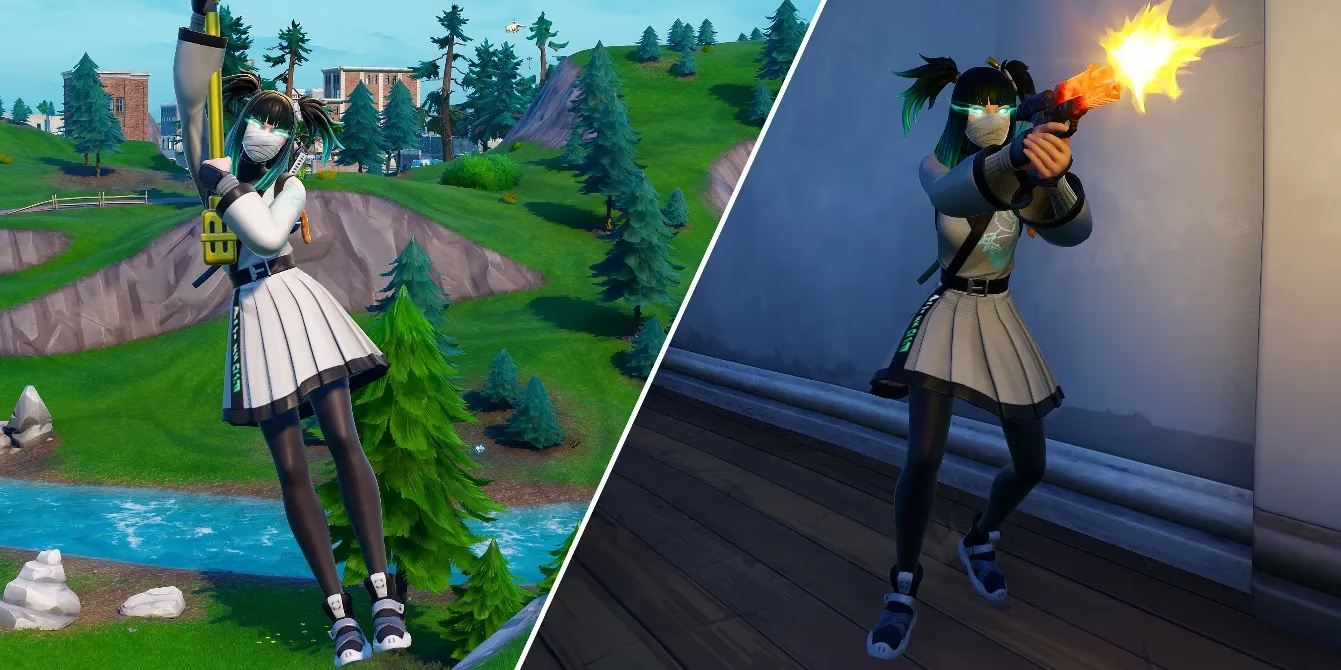
The appeal is simple. A stretched resolution changes the aspect ratio so the game world appears wider and character models look broader. For some players, that means easier target tracking and a cleaner view during build fights. For others, it means a lighter load on the GPU and a small FPS boost. It is not a magic wand, but in a lobby where half a second can decide who takes the Victory Royale, even a small edge feels worth chasing. Rook decided to test it properly, not just copy a random number and hope for the best.
The NVIDIA Route: Clean, Reliable, and Still the Go-To
For Rook, the first stop was the NVIDIA Control Panel. This method requires an NVIDIA GPU, but it remains the most dependable route in 2026 because it works at the driver level and does not depend on Fortnite’s config files staying editable. The GPU took a deep breath and did the heavy lifting.
-
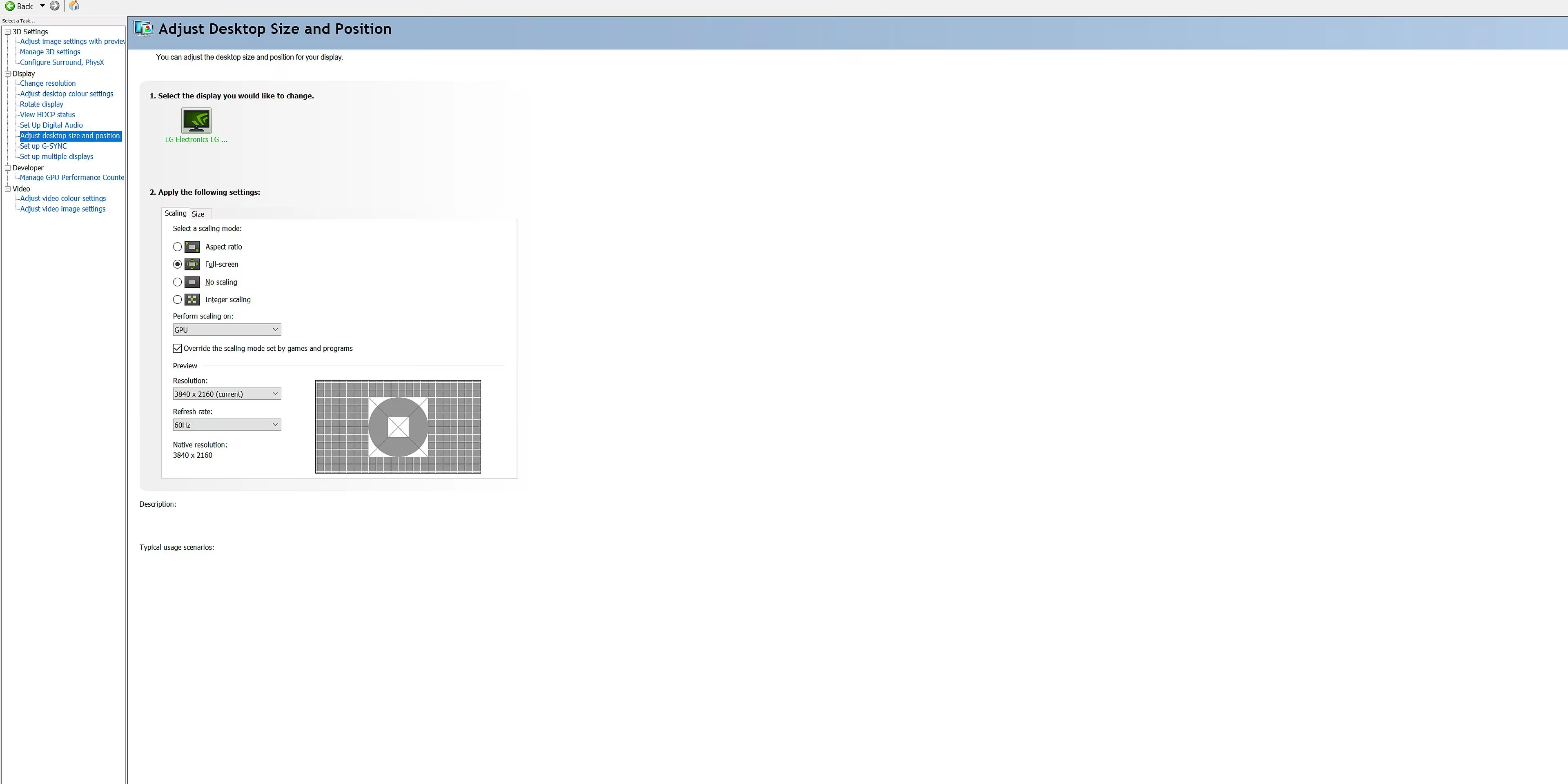
Open the NVIDIA Control Panel and go to Adjust Desktop Size and Position.
-
Set Scaling Mode to Fullscreen and Perform Scaling On to GPU.
-
Make sure Override the scaling mode set by games and programs is checked.
-
Under Display, open Change Resolution.
-
Select Customize, then Create Custom Resolution.
-
Enter the desired Horizontal Pixels and Vertical Lines. For a 1350x1080 stretch, set Horizontal Pixels to 1350 and Vertical Lines to 1080.
-
Select Test, then choose Yes when prompted to save the custom resolution.
-
Back in the resolution list, find the new entry under the Custom section, select it, and click Apply.
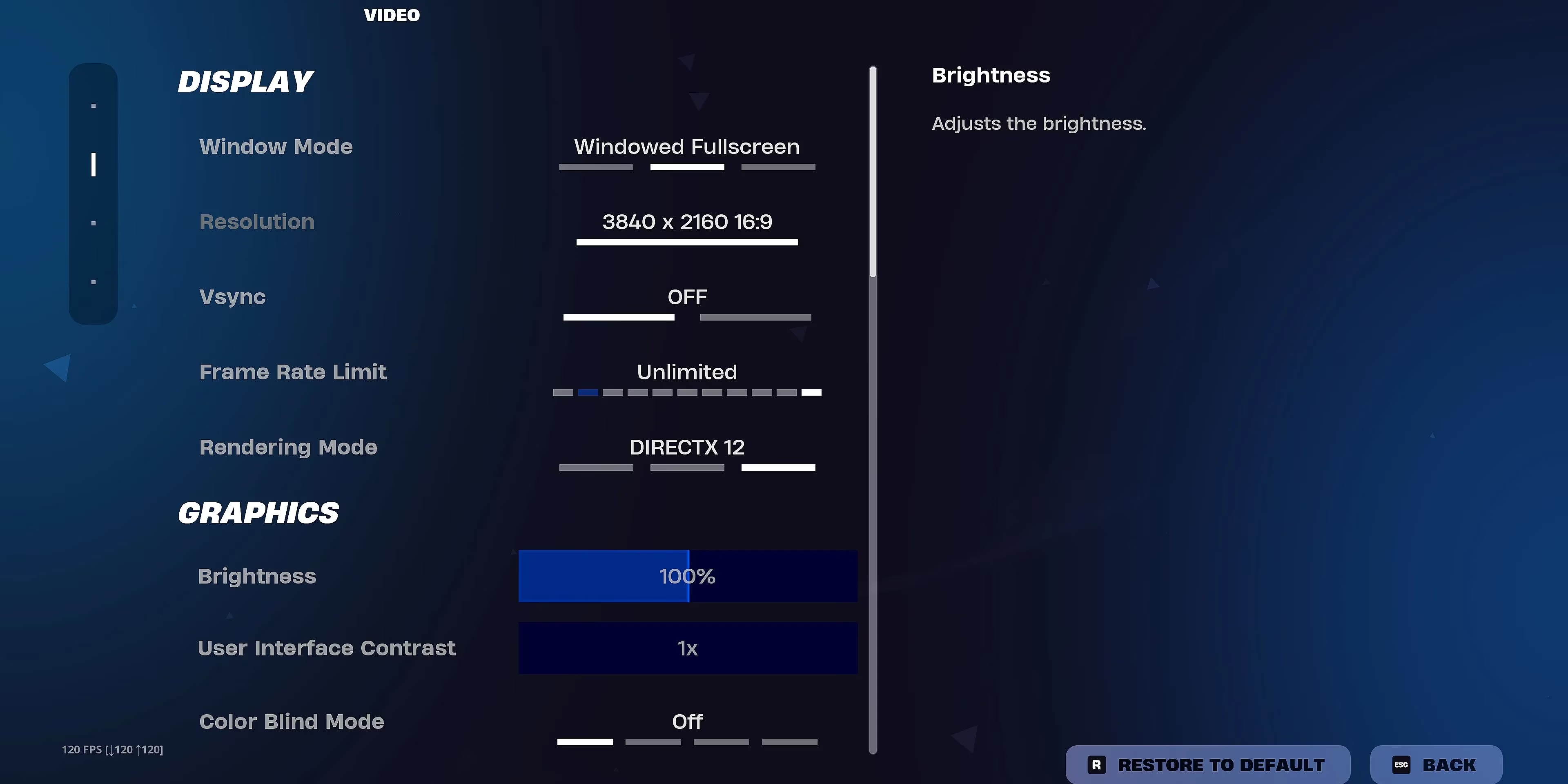
There is one final step that trips up plenty of players: Fortnite itself. Rook opened the game, went to the Display tab in settings, and changed Window Mode to Windowed Fullscreen. Without that, the desktop stretch may not behave the way the player expects. It is a small detail, but it is pretty much the difference between a clean setup and a confusing one.
The Config File Trick: Powerful, Fragile, and Often Patched
The second method lives in Fortnite’s config files. Rook had heard stories about it from older players, the kind who speak about patch notes like weather reports. The file guards its secrets behind a read-only lock, and the method has been patched before—including around Fortnite Remix. As of 2026, it is best treated as a fragile trick that may work again after future updates, not as a guaranteed path. If it does return, the steps are straightforward.
-
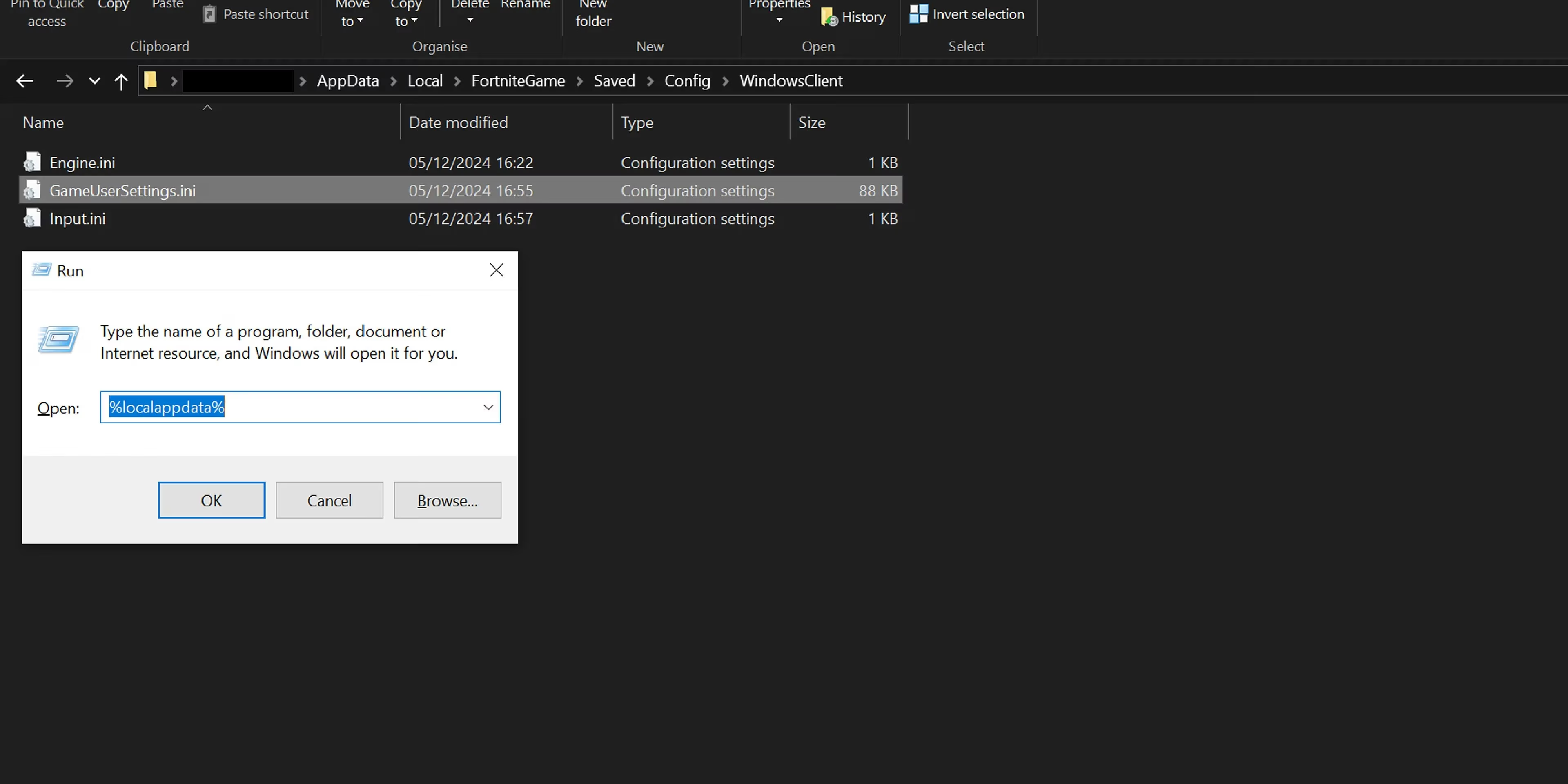
Press Windows + R to open the Run window.
-
Run
%localappdata%. -
Open the FortniteGame folder, then Saved.
-
Open Config, then WindowsClient.
-
Find GameUserSettings.
-
Right-click the file, choose Properties, uncheck Read-Only under Attributes, and select OK.
-
Open GameUserSettings.
-
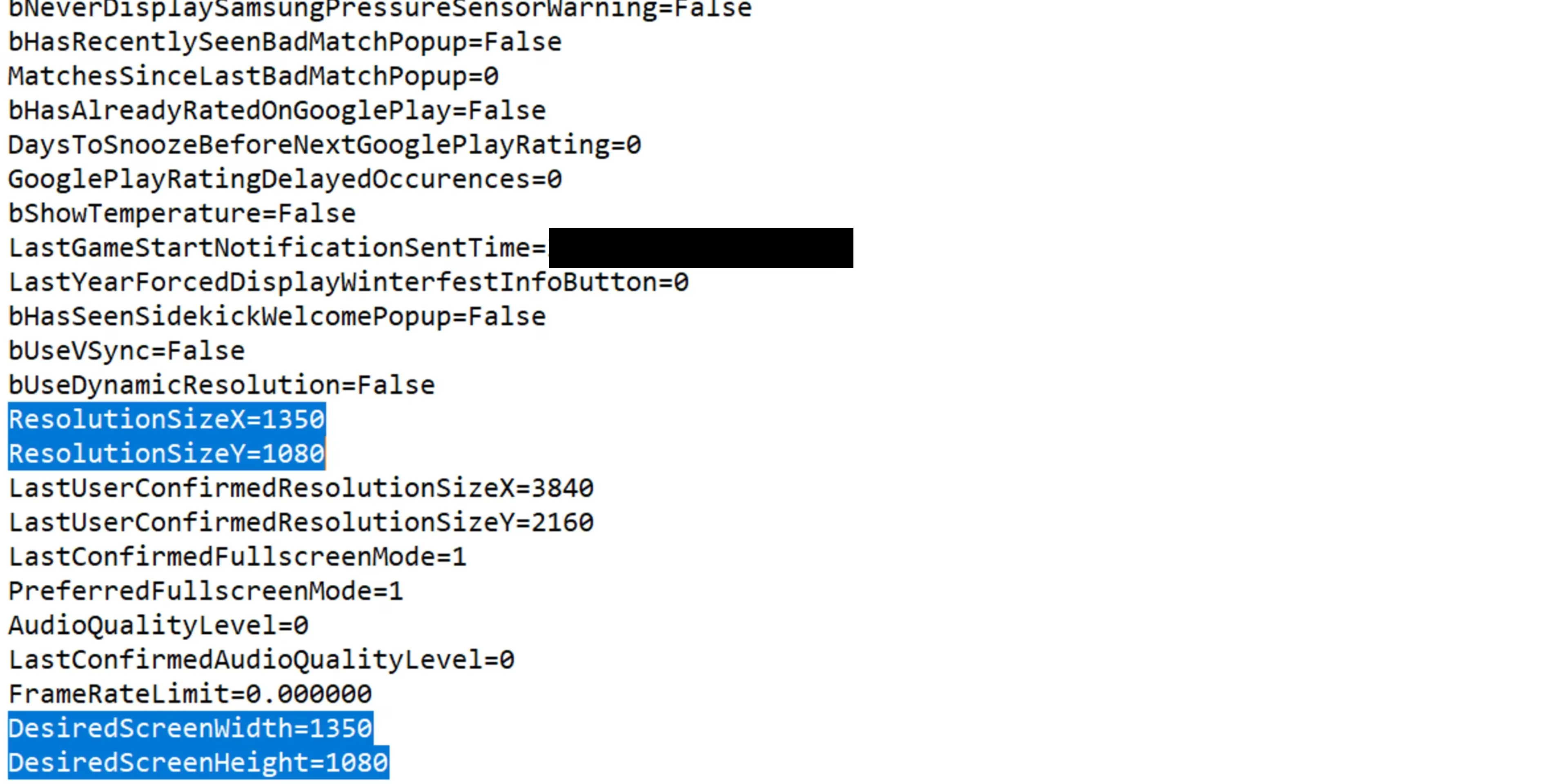
Use Ctrl + F to find
ResolutionSizeX, then setResolutionSizeXandResolutionSizeYto the desired values. For 1350x1080, use 1350 and 1080. -
Find
DesiredScreenWidth, then setDesiredScreenWidthandDesiredScreenHeightto match those same values. -
Save the file, right-click it again, open Properties, re-check Read-Only, and click Apply.
-
Launch Fortnite and confirm the in-game resolution matches the config values.
Rook tried the config route once, watched the game ignore his handiwork, and laughed. “That’s the sweet spot,” he said, meaning the moment when a trick works just often enough to keep players curious. The NVIDIA route was less mysterious, and for a competitive player, less mystery usually means less wasted time.
What Values Do Pros Actually Use?
There is no single best stretched resolution in Fortnite. The right choice depends on monitor support, GPU headroom, eyesight, and personal comfort. Still, certain values keep appearing in pro discussions because they balance visibility and performance. Rook tested a few in creative mode, then in ranked lobbies, and finally in a chaotic Reload match where the screen never stopped moving.
| Resolution | Feel | Notes |
|---|---|---|
| 1750x1080 | Mild stretch | A gentle widening that keeps a familiar look |
| 1600x1080 | Balanced | Popular for clearer models without extreme distortion |
| 1550x1080 | Competitive middle ground | A common pick for players chasing visibility |
| 1440x1080 | Classic 4:3 style | Stronger model width and a familiar pro feel |
| 1656x1070 | Slightly unusual | Useful for players fine-tuning FPS and clarity |
| 936x668 | Extreme stretch | Maximum width, but a heavy visual trade-off |
Rook settled on 1600x1080 after a long night of testing. The island stretched like a cat waking up, and suddenly the edges of his view felt less crowded. His frame rate rose a little, his targets looked broader, and his builds felt easier to read. He still missed shots. He still lost a duel to a player who landed a lucky headshot. The storm does not care about aspect ratio.
That is the honest truth of stretched resolution in 2026. It can improve visibility and performance, and it can give a player a small psychological lift. But it cannot replace game sense, aim practice, or smart rotations. Rook kept the setting for a week, then switched back for a tournament that required a standard look. The experiment was worth it. The lesson was simple: test carefully, use the NVIDIA method when reliability matters, and treat the config file trick as a risky bonus. The island will keep changing. The players who adapt—and who know when to stop fiddling with settings—are the ones still standing when the final circle closes.